
Article · part of a guide
How to Set Up Scheduled Drift Detection for Terraform and OpenTofu
Scheduled drift detection catches the manual console changes, auto-scaling tweaks, and emergency hotfixes that diverge your infrastructure from its Terraform or OpenTofu state. This guide compares cron, CI/CD, and platform-native approaches.
Key takeaways
- Scheduled drift detection runs automated checks at regular intervals to compare actual infrastructure against Terraform or OpenTofu state, catching drift within hours instead of weeks.
- Three viable approaches exist: cron plus shell scripts for small teams, CI/CD pipelines for teams with existing infrastructure, and platform-native detection like Scalr.
- DIY cron and CI/CD approaches hit limits around credential management, state-lock contention, per-workspace alerting, and CI/CD minute costs.
- Scalr enables drift detection per environment, surfaces findings in a dedicated tab, alerts via Slack or Microsoft Teams, and offers Ignore, Sync State, or Revert Infrastructure remediation.
- Scalr keeps a human in the loop for remediation rather than fully automating rollbacks that could revert an emergency change.
This post is part of a series on Terraform Drift Detection and Management: A Comprehensive Guide.
Infrastructure drift is inevitable. Someone makes a manual change in the AWS console during an incident, an auto-scaling event modifies a resource outside of Terraform’s control, or a teammate applies a hotfix directly to production. Drift will happen. What matters is whether you catch it before it causes a compliance violation, a failed deployment, or a security incident.
Scheduled drift detection fixes this. It runs automated checks at regular intervals and compares your actual infrastructure state against what your Terraform or OpenTofu configuration declares. You can set it up with a cron job, a CI/CD pipeline, or a platform that does it natively.
For a broader overview of what drift is and why it matters, see our comprehensive guide to Terraform drift detection.
Why Scheduled Detection Beats Ad-Hoc Checks
Running terraform plan manually to check for drift works in theory, but teams forget and engineers get pulled onto other work. The longer drift goes undetected, the harder it becomes to untangle what changed, who changed it, and whether it was intentional.
Scheduled detection takes people out of the loop. It catches drift within hours instead of weeks, surfaces changes while the context is still fresh, and leaves the audit trail compliance teams ask for. It also helps at SOC 2 time: auditors want evidence that changes made outside the approved process get noticed, and a daily drift report is easy evidence to hand over. That’s also why teams pair drift detection with policy-as-code enforcement, so non-compliant changes get stopped before they’re ever applied.
Approach 1: DIY with Cron and terraform plan
The simplest approach uses Terraform’s built-in exit codes. When you run terraform plan -detailed-exitcode, it returns exit code 0 for no changes, 1 for errors, and 2 for detected drift. You can wrap this in a script and schedule it with cron or a CI/CD pipeline.
Basic Shell Script
#!/bin/bash
# drift-check.sh
cd /path/to/terraform/config
terraform init -backend-config=prod.hcl -no-color
terraform plan -detailed-exitcode -no-color -out=drift.plan 2>&1

EXIT_CODE=$?
if [ $EXIT_CODE -eq 2 ]; then
  echo "DRIFT DETECTED"
  terraform show -no-color drift.plan | curl -X POST \\
    -H 'Content-type: application/json' \\
    --data '{"text": "Drift detected in production"}' \\
    "$SLACK_WEBHOOK_URL"
elif [ $EXIT_CODE -eq 1 ]; then
  echo "ERROR running plan"
fi
rm -f drift.plan
Schedule with Cron
# Run drift check daily at 6 AM UTC
0 6 * * * /opt/scripts/drift-check.sh >> /var/log/drift-check.log 2>&1
Limitations of the DIY Approach
This works for a handful of workspaces, but it doesn’t scale. You have to manage credentials for every provider, keep a separate script per workspace, handle state locking conflicts with production runs, and build your own alerting and reporting. By the time you’ve solved all of that, you’ve built a rough drift detection platform, which is what dedicated tools already are.
Approach 2: CI/CD Pipeline Scheduling
A step up from cron is running drift checks through your CI/CD system. GitHub Actions, GitLab CI, and Jenkins all support scheduled triggers.
GitHub Actions Example
name: Drift Detection
on:
  schedule:
    - cron: '0 6 * * 1-5'
  workflow_dispatch: {}

jobs:
  detect-drift:
    runs-on: ubuntu-latest
    strategy:
      matrix:
        workspace: [networking, compute, database, monitoring]
    steps:
      - uses: actions/checkout@v4
      - uses: hashicorp/setup-terraform@v3
      - name: Check for drift
        id: plan
        run: |
          cd workspaces/${{ matrix.workspace }}
          terraform init
          terraform plan -detailed-exitcode -no-color
        continue-on-error: true
      - name: Alert on drift
        if: steps.plan.outcome == 'failure'
        run: echo "Drift detected"
This is better than raw cron: you get logs, parallel execution across workspaces, and integration with your existing alerting. But you’re still managing credentials, paying for CI/CD minutes, and dealing with state lock contention when drift checks overlap with real deployments.
Approach 3: Platform-Native Drift Detection with Scalr
Scalr has built-in drift detection, so you skip the infrastructure overhead of the DIY approaches. Instead of building and maintaining scripts, you turn on drift detection at the environment level and Scalr handles the rest.
Setting It Up
In Scalr you enable drift detection per environment instead of per workspace. That's deliberate: it gives you consistent coverage across every workspace in an environment without configuring each one by hand. To turn it on:
- Navigate to your environment settings in the Scalr UI.
- Enable drift detection and pick a frequency, daily or weekly.
- Optionally set a preferred four-hour window. Scalr spreads the checks across that window rather than starting them all at once, which is what you want once an environment has enough workspaces for drift runs to compete with real plans and applies. Leave it unset and the existing behavior is unchanged.
- Optionally narrow the scope by workspace tag, environment type, or a name pattern, so a schedule can cover production workspaces without sweeping up every sandbox in the environment.
Every workspace that matches is then checked on that schedule. There's no script to maintain, no credentials to manage separately, and no state lock conflicts, because drift checks run through the same queue as your applies.
Three behaviors are worth knowing before you turn this on, because each one surprises somebody:
- A workspace is skipped if it has no active state, or if it was applied within the schedule period already. Drift checks don't redo work a regular run just did.
- Detection pauses on a workspace after five consecutive failed or unactioned drift runs. A broken or abandoned workspace stops burning agent capacity on checks nobody is reading, and the workspace UI explains why it paused so an owner can re-enable it.
- Since April 2026, checks run on workspaces in every execution mode. Earlier releases skipped state-storage-only workspaces, so if you tried this before and your state-only workspaces never appeared in a report, that's why.
Monitoring and Notifications
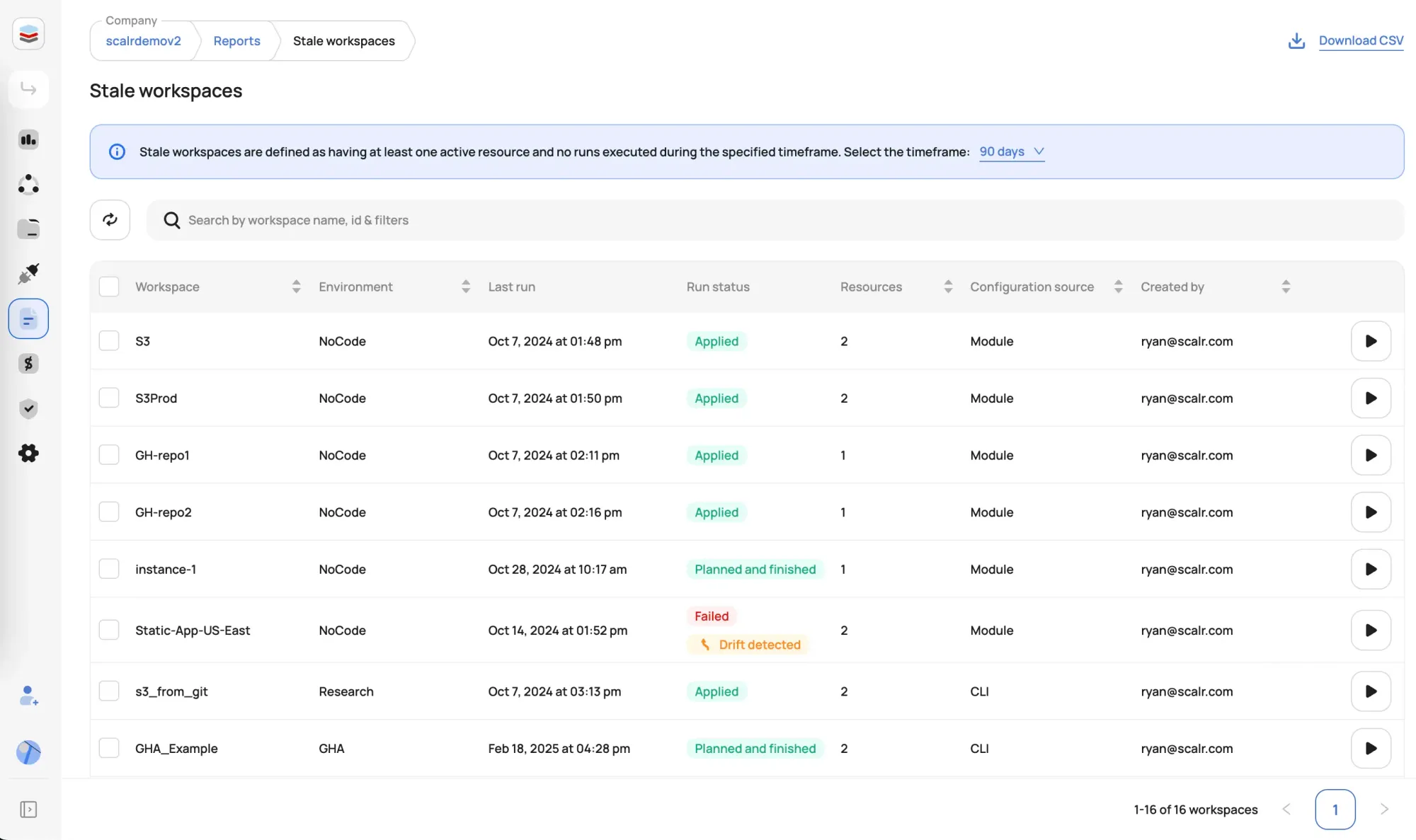
Results land in a dedicated Drift Detection tab, separate from your regular run history, which keeps drift findings from getting buried in a stream of plan and apply runs. The per-environment drift report shows the last check, the next scheduled one, and current status, with remediation actions available from the report itself.
You don't have to open either one to notice drift. Any workspace with active drift carries a "Drift detected" label on the Workspaces list, and the list filters down to just those workspaces. The label clears on its own once the drift is resolved.
For alerting, Scalr posts to both Slack and Microsoft Teams when drift is detected, with the affected workspace and a link to review the changes. Teams notifications carry the drifted resource counts and buttons to ignore, synchronize state, or revert, so a triage decision doesn't always need a trip to the UI. Add the drift_detected event to an existing subscription to start receiving them.
If your team runs infrastructure through AI assistants, the Scalr MCP server exposes a drift detection reports tool that queries drifted workspaces with filters for environment, tag, drift status, and detection date. It needs the environments:read-reports permission. That turns "which workspaces drifted this week" into a question you can ask in the same place you're already working rather than a report you remember to open.
Acting on Detected Drift
Once drift is detected, Scalr presents three options directly in the UI: Ignore for expected changes, Sync State to update state to match reality, or Revert Infrastructure to roll back unauthorized changes. Scalr deliberately keeps a human in the loop for remediation, because fully automated rollbacks sound appealing until they revert an emergency scaling event at 3 AM.
For a deeper look at when to use each remediation strategy, see our guide to drift detection and remediation.
Choosing Your Approach
Cron + shell scripts work for small teams with fewer than 10 workspaces and simple provider setups.
CI/CD pipelines are a good fit for teams that already have mature pipeline infrastructure and want drift detection without adding another tool.
Platform-native detection makes sense once you’re managing dozens of workspaces or need visibility into drift across teams. The setup cost is near zero, and there’s no ongoing maintenance. Scalr's current plans are on the pricing page.
Whichever approach you pick, make sure drift detection runs automatically and on a schedule. A daily check catches problems that ad-hoc manual checks miss.
About the author

CEO at Scalr
Sebastian Stadil is the CEO of Scalr with 15+ years of DevOps experience. He started with AWS in 2004 and advised early Microsoft Azure and Google Cloud.
Part of this guide
4 sheets